A place to start.
Create and export a 2D or supported 3D browser game, connect an MCP agent, or build your first landscape and model. Native-only features are marked clearly.
Open the web beta ↗Create, play and export a 2D game
- Open Aether Studio, choose Game Engine, then Create a 2D game.
- Add sprites or shapes. Give objects static or dynamic physics bodies and author input actions with the Blueprint controls.
- Choose Play to run the game. Click inside the play area for keyboard control; choose Stop to edit.
- Choose Web · HTML, then Export game. Aether downloads
aether-2d-game.htmlcontaining your saved scene, embedded images, Blueprint runtime and 2D physics engine. No Windows app or account is needed for this browser export. - Open the HTML in a browser or host it on a static website. Keep a separate project JSON backup if you want to keep editing.
Build a desktop game
In the export selector choose Desktop build project. The ZIP contains a complete game build project, not an executable yet. Follow BUILD-DESKTOP.txt: run npm install, then npm run package:windows or npm run package:linux. Share the entire generated platform folder. These apps use the same selected renderer and gameplay runtime. WebGPU is experimental; see the coverage section below.
Export a 3D browser game
- In Game Engine, use Gameplay to author executable rules for your own 3D game, choose an adventure or squad game, open a shared-engine project authored with MCP, or configure a 3D scene with dynamic bodies and actions in 3D physics.
- Use Play game to run its real gameplay. Edit terrain, actors, materials, objectives and supported mission Blueprints in the editor.
- Choose Web · ZIP and the WebGL2 renderer, then Export game to download a ZIP containing the same 3D player runtime and the scene’s required models and textures.
- Extract the ZIP and upload the entire folder to any static HTTP(S) host. Open index.html on that host. No desktop Aether app, account or Aether server is needed to play the exported game.
2D HTML and 3D ZIP are playable exports. Project JSON is the editable backup. The legacy Logic sequence is an event preview, and export rejects it as gameplay. Native actor Blueprint graphs, exact CAD, Vulkan GI and native virtualized geometry require their matching desktop runtime.
Author your own 3D gameplay
The Gameplay panel defines reusable behavior as project data. The same runtime executes it in browser Play and in exported games. You can edit it directly or through MCP; a game-specific engine tool is not required.
- Open Game Engine, create a blank project, then choose Gameplay. For an editable starting point choose New Jump & collect, New Three switches or New Lane runner. These replace the current scene, so save existing work first.
- Open Gameplay again. In Variables, add named numeric values such as speed, score, health or state. In Rules, choose start, tick or key events, a condition, and ordered assignments. Expressions support declared variables, keyboard input, arithmetic, comparisons and math functions. Example:
x + (input.KeyD - input.KeyA) * speed * dt. - In Objects & attachments, bind actors to position, rotation, scale and visibility expressions. Assign a parent for a local transform, such as a wheel, door or moving platform component. Positions use metres; rotations are radians in YXZ order; scale multiplies the actor’s saved scale.
- Set the camera target and offsets. Add Start menu choices that initialize variables, HUD values, conditional messages, optional on-screen buttons and an end condition. Rules run at 120 fixed steps per second, in the order listed; assignments see earlier assignments. Escape pauses; Restart resets the program and its selected menu choices.
- Choose Validate & apply gameplay, then Play game. Applying rules replaces the old Logic preview sequence. Save project JSON or save back to your MCP cloud project. Choose Web · ZIP and Export game to package the same program, models and player.
Compose model builds geometry from boxes, convex polygon faces and elliptical lathe profiles. Select a mesh to replace, or create a new mesh with no selection. The engine stores the editable construction recipe and regenerates its geometry in Play and export. Existing mesh, material, terrain and import tools remain available.
Collision boxes use [minX,minY,minZ,maxX,maxY,maxZ]. The expression hitBoxes(oldX,oldY,oldZ,newX,newY,newZ,radius) checks a swept path against expanded boxes; author the response in rules. This is a conservative collision query, not an automatic rigid-body solver. Timers and state transitions use variables and conditions.
Physics, spawning, audio and skeletal clips
- Configure sphere or box bodies in 3D physics. Add rule actions in Gameplay → Rules to apply a force, torque, impulse or angular impulse. In Physics & object sensors, write a body’s world position, linear velocity or angular velocity into a declared variable. Rules can use those values for decisions, HUD and end conditions. A body cannot also have a rule transform binding.
- In Spawn prefabs, choose a source actor and a unique prefab ID. Enable physics to copy that actor’s configured body. Add a
spawnaction with world position, rotation, initial velocity, lifetime and a result variable. Later actions address that numeric instance handle. Usedespawnto remove it early. The source remains in the scene; clones have independent skeletons. If the live-instance limit is reached, spawn returns handle 0. - In Sounds, add a sound ID and import WAV, MP3 or OGG. Add
sound_playactions with that ID and a voice name, volume, rate and loop option. Attach a scene actor or spawned handle for positional sound, or leave the target unset for music/UI. Reusing a voice name replaces its previous sound.sound_stopends that voice. Start game unlocks browser audio; Pause suspends it, and Menu/Restart/Exit stop old voices. - Import a GLB containing a rig and animation clips. The Rules panel lists embedded clip names. Add
animation_playwith a target, clip name, speed, once/repeat/pingpong and a crossfade duration. Useanimation_stopto stop or fade out. Clips animate the imported bones and skin; this release does not add rig creation, retargeting or blend trees. - Save and play the project. Choose Web · ZIP, WebAssembly · ZIP or Desktop build project to include the same program, native solver, embedded sounds, models and clips. WebAssembly exports require configured 3D physics; rendering and rule evaluation remain JavaScript.
Order: sensors refresh before each fixed tick, rules run their assignments then actions, body commands enter the native solver, and sensors refresh after physics. Missing or expired instance handles read as alive=0; actions targeting them do nothing. Spawns expire by simulation time, so pause freezes their lifetime. Imported animation playback advances by the same simulation clock. A play action restarts its clip or named sound voice; trigger it on a key or state transition to avoid restarting every tick.
Current boundaries: rules and native WASM physics now combine. Adventure, squad and 2D still have separate controllers. Native collision uses spheres and axis-aligned boxes with rotational state, not oriented-box or terrain-mesh collision; no joints are exposed here. Despawning reconstructs the bounded native world while preserving transforms and linear/angular velocity; sleep/contact caches reset. Networking and full native-engine parity are not included. WebGPU remains experimental and lacks physical-GPU visual qualification.
New resource limits: 32 prefab definitions, 128 live instances in total, 128 original native bodies, 2 million spawned mesh vertices, and lifetimes up to 3600 seconds. Audio: 24 embedded WAV/MP3/OGG files, 4 MB per imported file, 16 MB encoded total, at most 180 seconds per decoded clip and 64 MB decoded total, with 32 simultaneous named voices. GLBs support up to 256 clips. Cloud request/storage limits may require smaller assets.
Program limits: 256 variables, 200 rules, 150 bindings, 3000 collision boxes, bounded expression size and workload, local position components within ±10,000 metres and positive scale factors up to 1000. Division/modulo by zero returns zero. Model recipes allow 900,000 generated vertices per actor and 2,000,000 per project. Public request and storage limits also apply.
Start in the browser
- Open the web workspace on a desktop browser with WebGL enabled. A mouse and keyboard are recommended.
- Choose Terrain Generation, 3D Modeling, or Game Engine. The workspace picker changes which tools are shown.
- Use the workspace switcher in the editor header to change tools without closing your current project. The question-mark button opens the Editor guide.
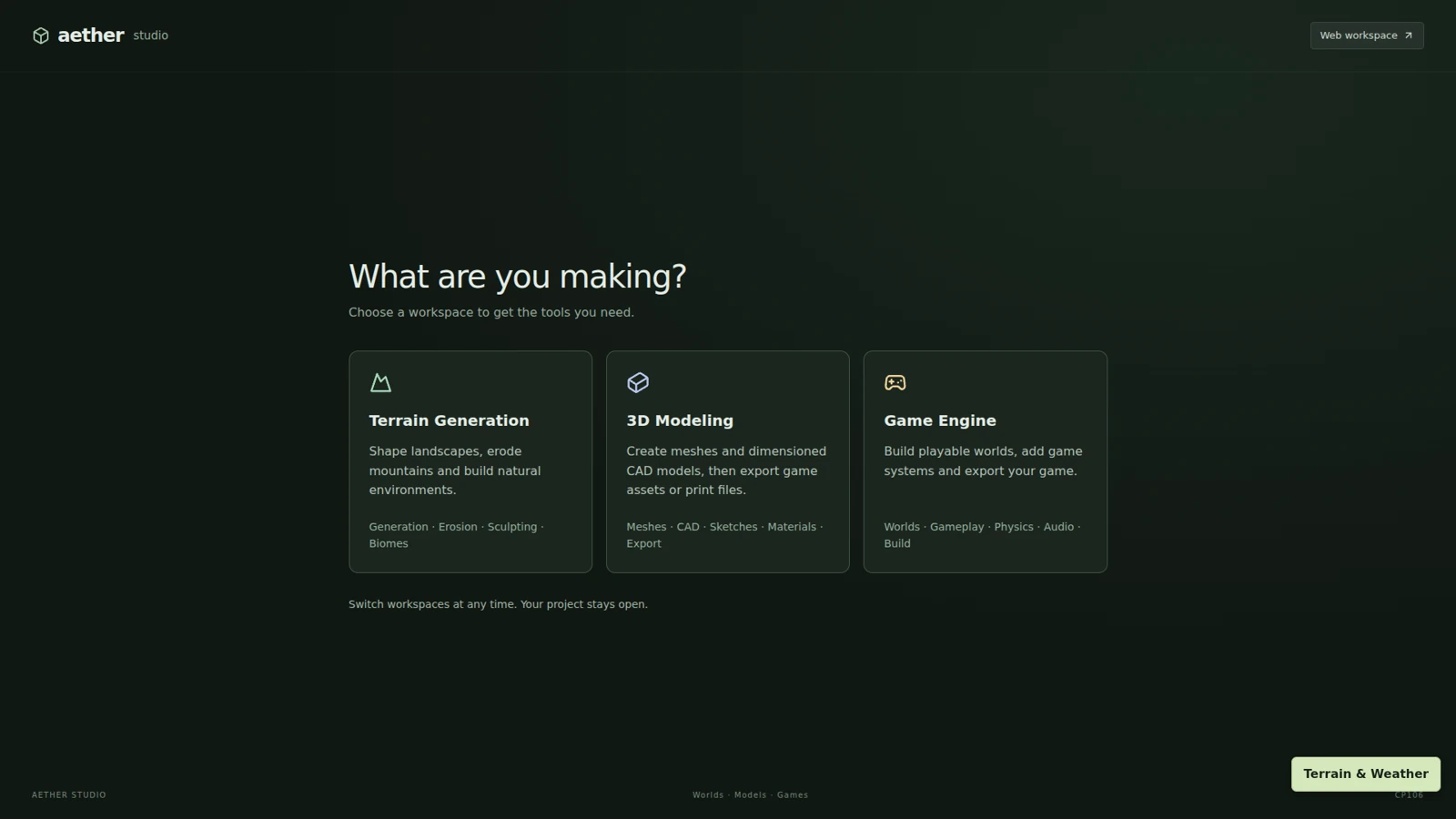
Reference capture from the CP106 desktop editor. Browser chrome and available tools differ.
Create your first model
- Choose 3D Modeling. Use the mesh tools to add a primitive or an editable curve. Select your object in the scene list.
- Adjust the object’s dimensions, transform and material in the inspector. Try a modifier such as taper, twist or bend.
- Press Ctrl+S (⌘S on macOS) to save in this browser. Open the project-name menu and choose Export project JSON to keep a separate backup.
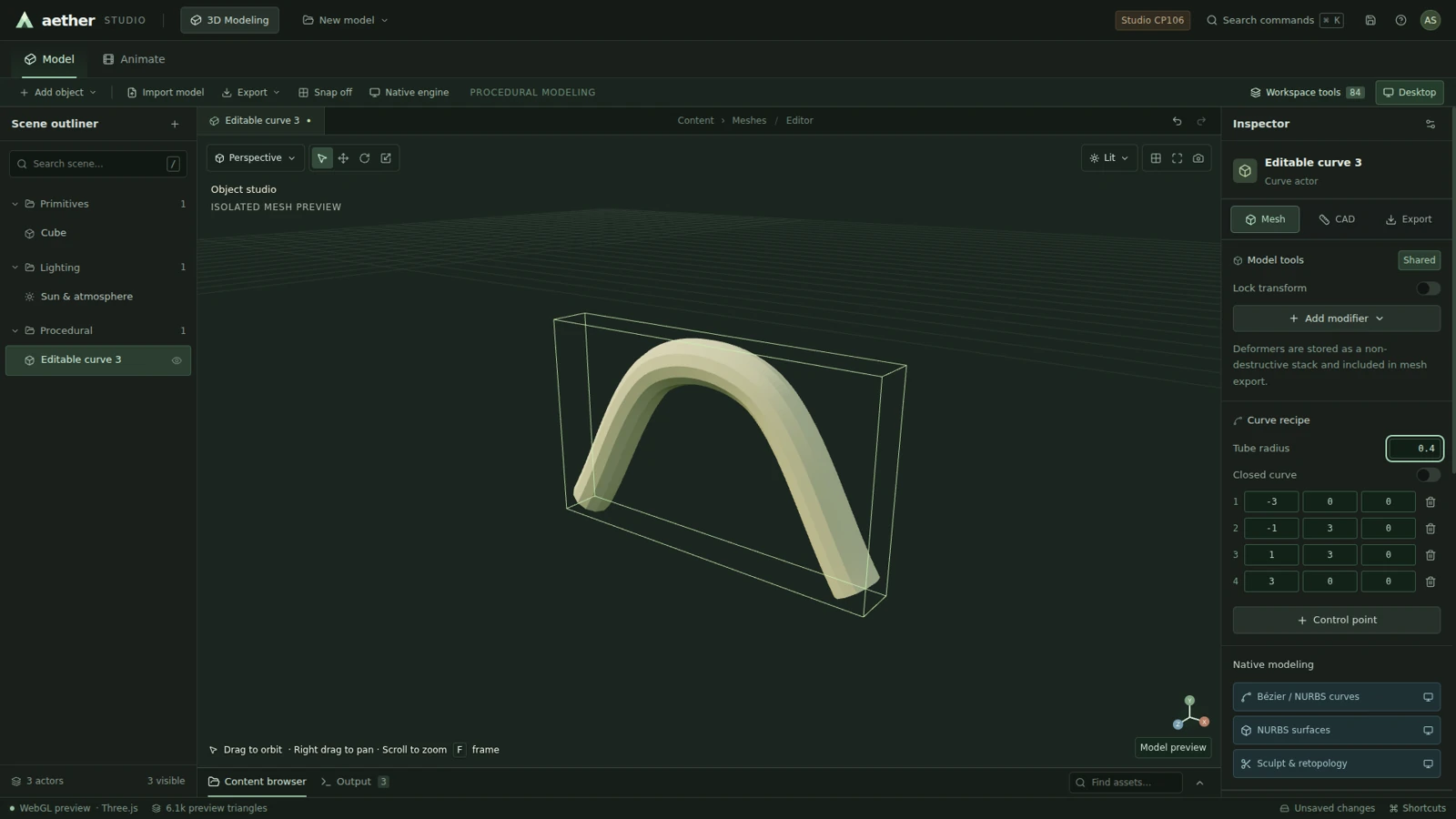
Reference capture from the CP106 desktop editor. Browser chrome and available tools differ.
Shape a landscape
- Choose Terrain Generation from the initial workspace picker to start a terrain project. If you switch from an existing project, that project stays open.
- Choose a landscape recipe to add terrain if your project does not have any, then explore sculpting, materials and world lighting. Existing models are retained; Undo reverses the recipe change.
- Save locally, export project JSON, or use the export tools for a terrain heightfield and scene mesh. The native high-detail terrain pipeline remains separate. Shared browser WebGPU export is experimental and does not imply native terrain or rendering parity.
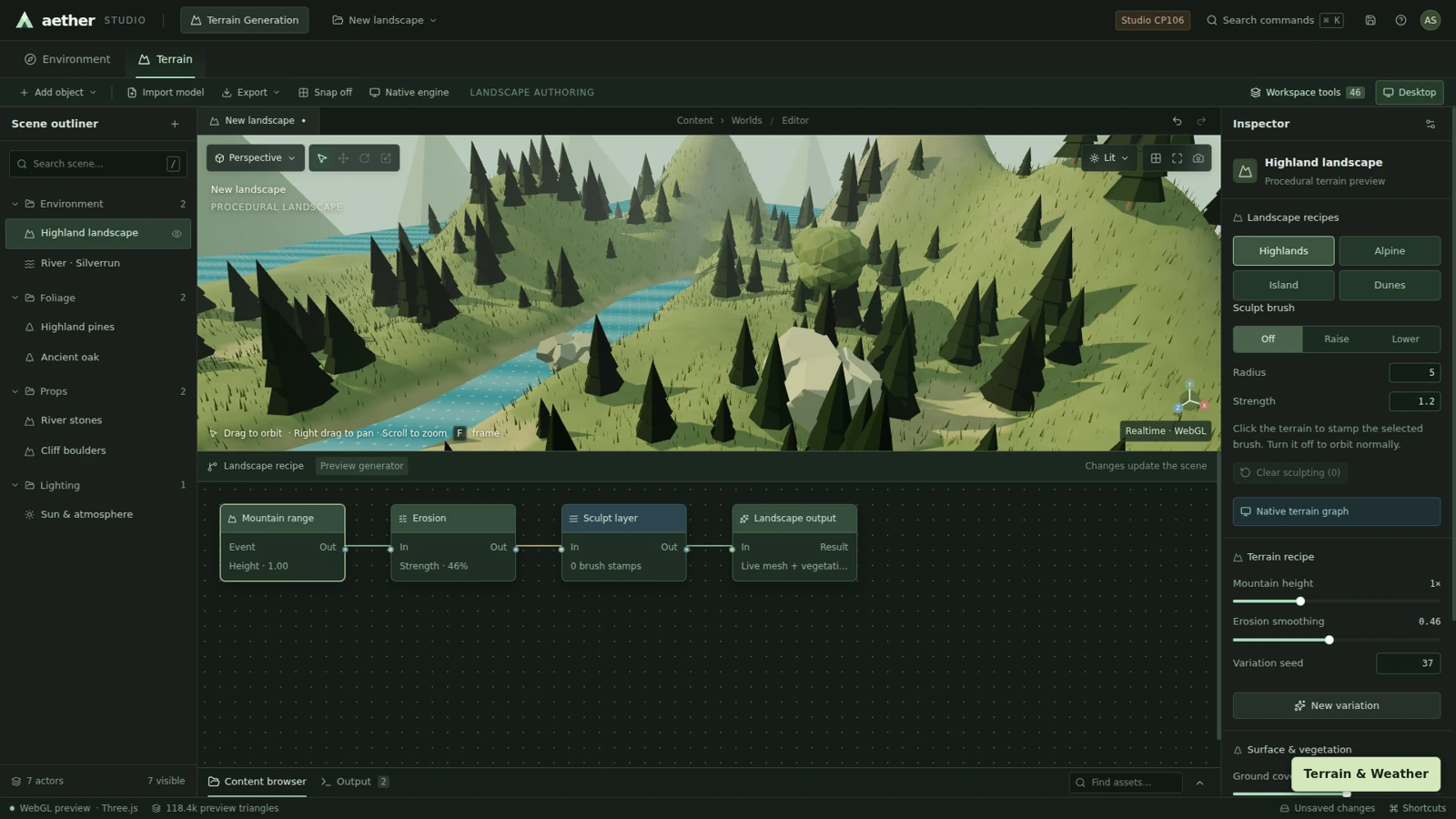
Reference capture from the CP106 desktop editor. Browser chrome and available tools differ.
Compose a scene
- Choose Game Engine, then Blank project or one of five editable templates: Northwatch Valley, Silver Coast, Dune Outpost, Alpine Crossing, or Blockout Arena. Name your project and choose Create. Use Continue current project to return to your saved scene.
- Use World → Terrain surface to change terrain shape and mesh detail; use the Terrain tab to sculpt. Select a landscape or object, then Material → Surface texture to apply a pattern or import an image. World → Water surface controls level, ripples, reflections and opacity. Changes are saved in your project.
- Use Animate for transform keyframes. Use Gameplay for executable variables, input rules, transforms, menus and HUD, or configure an adventure, squad mission, or supported 3D physics bodies and input actions, then use Play game. The separate legacy Logic sequence previews local events; it is not an executable gameplay graph and cannot be exported as one.
- Save project JSON as an editable backup. Export supported 3D gameplay with Web · ZIP and Export game, or follow the 2D HTML workflow above. A Desktop build project export needs a separate packaging step. Full native-engine projects and exact CAD still require the desktop runtime.
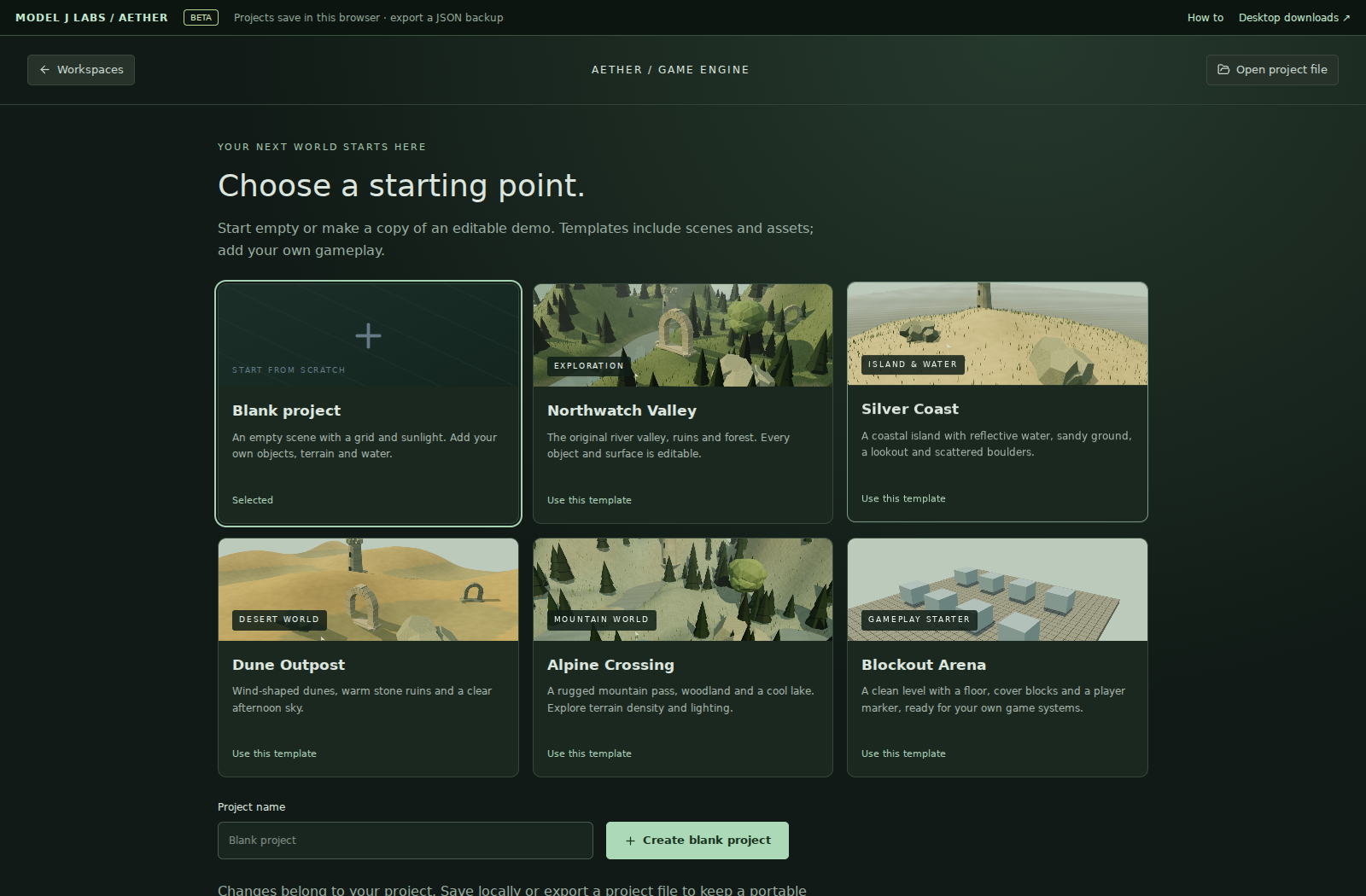
Reference capture from the CP106 desktop editor. Browser chrome and available tools differ.
Save, export and reopen
Every newly exported 2D and supported 3D game shows Created with Aether for two seconds of visible tab time before play. This also applies to WebGPU, WebAssembly and desktop build-project exports. Shared-web 0.10.146 fixes a missing splash in the shared 3D exporter; re-export older games to receive the fix. The splash is engine branding, not a digital signature; exported files remain editable.
- Use the project-name menu → Save in this browser for local persistence. This is device/browser storage, not account sync.
- Choose Export project JSON to download a portable project backup. Choose Open project JSON to restore that file. Keep backups before clearing browser data.
- Use Export game for a playable HTML or ZIP package. Use GLB for visible scene geometry or a selected mesh; use OBJ for a selected mesh. Geometry-only exports omit gameplay, water, atmosphere and timeline animation.
- To work with your AI on a cloud project, sign in through Connect MCP, then open MCP projects in Game Engine. Cloud projects and local browser saves are separate; save changes back to the cloud project to share them with your agent.
- The mesh import tool accepts self-contained GLB or OBJ files up to 5 MB. Complex scenes can be demanding; start with a small asset.
Exact CAD on desktop
- Exact solid CAD operations require the desktop runtime. The browser can display cached geometry from a saved CAD project, but it cannot evaluate exact CAD operations.
- In the desktop modeling workspace, create dimensioned sketches or use a CAD recipe. Set units intentionally, then create solids with features such as extrude, loft and Boolean cut.
- Validate the solid before export. STEP can preserve exact curves and assembly metadata. Edited meshes require watertightness checks and may export as faceted solids.
- For print workflows, check dimensions and validation before exporting. A successful geometry export does not replace a fabrication or engineering review.
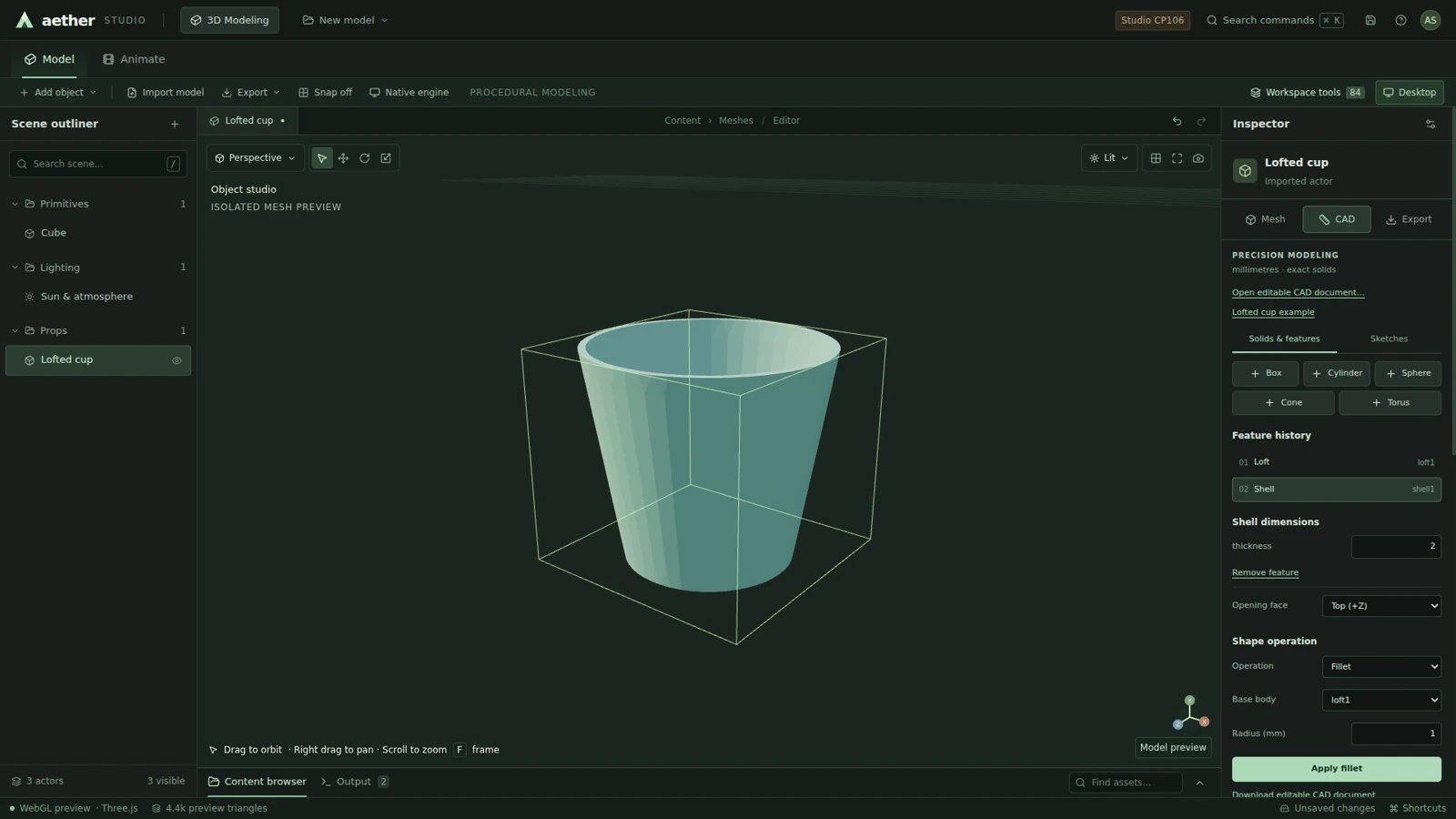
Reference capture from the CP106 desktop editor. Browser chrome and available tools differ.
Simulation is now a separate product
J Simulation has its own installer and study files. Existing .aesim studies can be opened there. Visit J Simulation.
Play a browser game or a native project
- In Game Engine, choose Play game for the current supported browser game. This runs gameplay in the browser. Scene preview is a separate camera and local-event preview; it is not the game player.
- For a desktop native-engine project, choose an existing native project or enter a name and select a playable demo: Verdant Relay (3D exploration), Skyline Courier (2D platformer), Vector Siege (first-person arena), or the collectible scene.
- Choose Create and play. The native player opens separately. Use Stop in the editor header to return to editing.
- To work with shared scene geometry, use Send scene to native engine and choose a destination project. Textures, water effects, animations and gameplay logic are not converted automatically.
The browser runs 2D games and supported 3D rule programs, adventure/squad games and native WASM rigid-body scenes. It exports standalone 2D HTML and static-host 3D ZIP packages. Native-only projects still use the matching desktop runtime.
Connecting the engine
Connect now opens a project chooser when no native project is selected. A shared editor project and a native .aproject are separate. If the engine still fails after selecting a project, keep the displayed error for diagnosis.
If something does not work
If the viewport is blank, enable WebGL and try reloading in a desktop browser. Export a JSON backup before clearing site data. Reduce scene complexity if interaction becomes slow.
The beta is best on a desktop-sized screen. Exact CAD and native build controls need the desktop runtime.
Browser tools, WebGPU and WebAssembly
Shared-web 0.10.147 exposes 110 MCP tools. The native reference catalog has 109 entries; the native relay has 99 full-schema tools. Neither indicates an active desktop connection. Call aether_browser_parity for operation-level coverage; matching names do not imply matching schemas or full parity.
Browser authoring now includes dimensioned mesh primitives, OBJ vertex edits and transforms, welding and normals, topology inspection, OBJ/STL base-mesh export, tube curves, four shared modifiers, terrain heightfields, terrain-to-mesh baking, deterministic model scattering and transform animation sampling. Granular 2D tools author sprites, clips, tilemaps, colliders, bodies, joints, prefabs, inputs and executable Blueprint classes.
Select WebGPU · experimental in the viewport or export renderer menu. It uses node-based terrain, grass and water materials with the existing gameplay sessions. Water uses environment reflections rather than WebGL planar reflections. HTTPS and a compatible WebGPU browser/device are required; failure is reported without silently switching to WebGL. Packaging and build checks are automated; physical-GPU rendering and visual quality are not yet verified.
Open 3D physics to assign box/sphere bodies, mass, gravity, a ground plane and keyboard force/torque/impulse actions. This is the existing native CP143 rigid-body solver compiled to WebAssembly. Author the same configuration through aether_3d_physics_catalog and aether_3d_physics_apply. Export with aether_game_export, target: "web-wasm", and renderer: "webgl2" or "webgpu". The archive includes the actual WASM binary and license/build identity. Rendering and other gameplay remain JavaScript. The 3D physics interface supports box/sphere bodies and a ground plane. It does not include joints, terrain-mesh collision, every native Blueprint host callback, native GI or virtualized geometry. Sculpted terrain does not automatically become a native physics collider. In the export menu, choose Web + native WASM physics, select the renderer, then choose Export game. This bundles the existing solver; it does not compile arbitrary gameplay or the whole engine to WebAssembly.
Import Godot, Unity and Android assets
Use Import project in the editor, or aether_import_formats, aether_import_inspect and aether_import_apply from MCP. Supply files as {path, data, encoding: "text" | "base64"}; choose a scene using entry. Inspect first. If the report lists losses, application requires accept_lossy: true.
- Godot: a .tscn scene with Node3D hierarchy, transforms, supported primitive MeshInstance3D geometry and supplied GLB/OBJ resources. GDScript/C#, animation trees, physics/gameplay, inherited scene instances and custom materials are not converted.
- Unity: text .unity/.prefab scenes with GameObject/Transform hierarchy and supported MeshFilter geometry. Include model resources and their .meta files. C#, MonoBehaviours, prefab instances, animation controllers, physics/gameplay and renderer materials are not converted.
- Android APK: archive inspection and extraction of loose GLB/OBJ assets only. Compiled DEX/native code, Unity AssetBundles, Godot PCKs and APK execution are unsupported. This does not reconstruct an editable game.
Scripts are never executed. Conversion reports omitted content and requires acceptance of losses. Imported scenes need Aether gameplay configuration before game export. The browser importer limits archives to 256 members, 20 MB decoded total and 5 MB per member. Public MCP requests retain the smaller 8 MB transport limit.
Scripts, components and development tools · 0.10.147
The public shared-engine catalog now contains 110 tools: 107 operations usable through the local shared-engine adapter, plus three hosted browser-preview operations. The complete public tool catalog needs no sign-in to read. Project operations still require your account. Call aether_mcp_status to check the server version and exact tool names. Reconnect clients that cache an older catalog; updating the public engine does not replace a connector configured with another server URL.
In the editor, open Development. Scripts, Components, UI widgets and Animation states use the same validated project data and runtime as MCP. Verify runs behavior assertions, checks export readiness and requests evidence from the actual visible viewport. Saved cloud projects retain revision conflict protection.
Reusable gameplay scripts
aether_script_catalog returns the language, schemas and engine API. aether_script_validate checks source without changing a project. aether_script_upsert saves a module with typed field defaults; aether_component_upsert attaches independent state to any compatible actor. aether_script_read, aether_component_inspect and the removal tools support inspection and cleanup. Referenced modules cannot be removed.
{"project_id":"your-project","module":{"id":"Mover","fields":{"speed":{"type":"number","default":2,"min":0,"max":20}},"source":"function tick(dt) { let t = engine.getComponent(self, \"transform\"); t.position[0] += state.speed * dt; engine.setComponent(self, \"transform\", t); }"}}
{"project_id":"your-project","component":{"id":"moving_box","actorId":"box","script":"Mover","state":{"speed":4}}}
Create an actor named box first. Modules are reusable: attach Mover to multiple actors with different speed values. AetherScript supports start(), tick(dt), event(name,value), helper functions, typed state, JSON values, arithmetic, conditions and bounded loops. It is an interpreted engine language, not JavaScript or C#. Host APIs expose transforms and custom components, declared variables, keyboard input, seeded random numbers, events, spawning, native force/impulse, sounds and clip playback. Physics, bindings and timelines retain transform ownership. Scripts cannot access the DOM, network, filesystem, imports or eval.
Limits: 16 modules, 32 KB UTF-8 per module, 128 KB source total, 64 authored components, 256 runtime components, 32 KB component state, 16,384 interpreter steps per fixed update and 16 helper-call levels. A fault disables the affected component and reports its source line. Its own state is restored; engine actions already issued are not transactional. Set a component's template:true to instantiate fresh state when its actor is used by a spawned prefab. The new components extend the general 3D runtime; existing 2D games keep their Blueprint runtime.
Interface and animation
aether_ui_apply authors text, buttons, progress bars, sliders, toggles and selects. Editable controls bind to declared numeric variables; buttons and controls can emit custom events. Widgets render in browser Play and all supported shared 3D exports. aether_animation_controller_apply authors clip state machines, conditions, minimum state durations and crossfades. Targets must have compatible embedded GLB clips; missing clips fail validation. Smooth weight painting, IK, blend trees and rig retargeting remain separate gaps.
Behavior tests and export checks
aether_runtime_test runs the actual fixed-step simulation and native WASM physics when configured. It returns component state, worldPoses (positions, quaternion rotations and scales), source-tagged logs, measured CPU update times, bounded replay events, observations and state assertions. Example:
{"project_id":"your-project","frames":120,"observe":["worldPoses.box.position.0"],"traceEvery":30,"assertions":[{"path":"worldPoses.box.position.0","equals":4,"tolerance":0.001}]}
This assertion assumes box starts at x=0 and its speed is 4. Test events support keyboard input, type:event with name/value, type:widget with name/value, and type:clear. Replay frames run at 120 Hz. A seeded random state makes repeated runs reproducible. Tests allow 3600 frames, 2048 events, 120 trace samples and one million script instructions in addition to the existing runtime work budget. Logs retain 256 entries and preserve a total error count even after older entries are dropped. Timing excludes rendering; a passing simulation is not a GPU or audible-audio check.
aether_build_validate checks project references, scripts, clips and requested export configurations before packaging. The Export game button performs the same preflight. A ready result does not mean a desktop executable was compiled or signed. Use the existing export tools to obtain the actual HTML/ZIP/build project.
Connect a browser preview to remote MCP
- Open the current cloud project in the public workspace and save changes.
- In Development, choose Connect agent preview. Keep this tab open. Choose Play game before requesting a rendered replay.
- Call
aether_preview_statuswith project_id, thenaether_preview_requestwith action:inspect, capture or replay. For replay, input contains the same test schedule, bounded to 1200 frames. It restarts and pauses the visible game. - Poll
aether_preview_resultwith project_id and job_id. Only a completed report came back from the browser; queued/running/expired/failed are distinct results.
Preview access is scoped to account, project, revision and session. Connections expire after 60 seconds without a heartbeat; pending requests expire after two minutes. Multiple tabs require an explicit session_id. Capture reports include a JPEG of the real 3D canvas, up to 640 × 480, plus runtime state and renderer counters. HTML menus/HUD are excluded. Reports do not claim human visual/audio approval or measured GPU timing. Save changes and reconnect after a revision change. No browser connection means no rendered evidence; the server does not fabricate a screenshot.
Browser-local WebMCP exposes aether_editor_inspect, aether_editor_capture and aether_editor_replay when the browser supports document.modelContext. Local stdio cannot connect a visible browser by itself; the three hosted preview tools return an explicit unavailable message there. The native relay retains 99 full-schema entries; the broader native reference comparison has 109 entries. Neither count proves a desktop is connected. These additions do not claim Unity/Unreal parity, native GI/virtualized geometry or AAA production readiness.
Runtime 0.10.152: native terrain graphs and rebuilt desktop programs
41 native terrain nodes in the browser, saved recipes and bakes, shared version identity and updated native desktop binaries. Includes the saved schema and readable example.
Runtime 0.10.151: erosion, maps and instanced scatter
Hydraulic and thermal simulation, 4K map export, tiled LOD, mask surfaces, RAW interchange and GPU instancing. Includes the saved schema and readable example.
Runtime 0.10.150: lighting and scene controls
Exposure, ambient fill, deterministic terrain variation, smooth/flatten brushes and per-part model colors. Includes the saved schema and readable example.
Runtime 0.10.149: 2D lifecycle and sound
EvTick, startup/menu testing, numeric equality, seeded Random nodes, embedded audio and sprite rotation. Includes readable examples and schemas.
Runtime 0.10.148 reference
Widget migration, runtime UI, mouse input, single HTML export and test event formats. Read gameplay examples.